Want to improve your website's Google rankings but are unsure where to start? Before creating more blog posts or making major website changes, review your existing search performance. You may already have pages that appear in Google Search but need better content, stronger relevance, or improved search-result presentation.
Google Search Console is a free tool that helps website owners understand how their websites perform in Google Search. It provides information about search queries, clicks, impressions, click-through rates, average positions, indexing, and certain technical issues.
In this guide, you will learn how to use Google Search Console to find SEO opportunities, identify pages that need improvement, discover relevant keywords, and build a practical optimization strategy for your business website.
What Is Google Search Console?
Google Search Console (GSC) is a free service from Google that helps website owners monitor and troubleshoot their website's presence in Google Search. It provides data that can help you understand how users discover your pages and whether Google has identified problems affecting their search visibility.
With Google Search Console, you can:
- Find search queries that generate impressions and clicks.
- Identify pages that receive search traffic.
- Compare clicks, impressions, CTR, and average position.
- Review indexing and crawling information.
- Inspect individual URLs.
- Submit and monitor XML sitemaps.
- Review available Core Web Vitals and other experience reports.
Visit Google Search Console to access the tool. You need to verify ownership of your website property before accessing its private performance data.
Step 1: Open the Performance Report
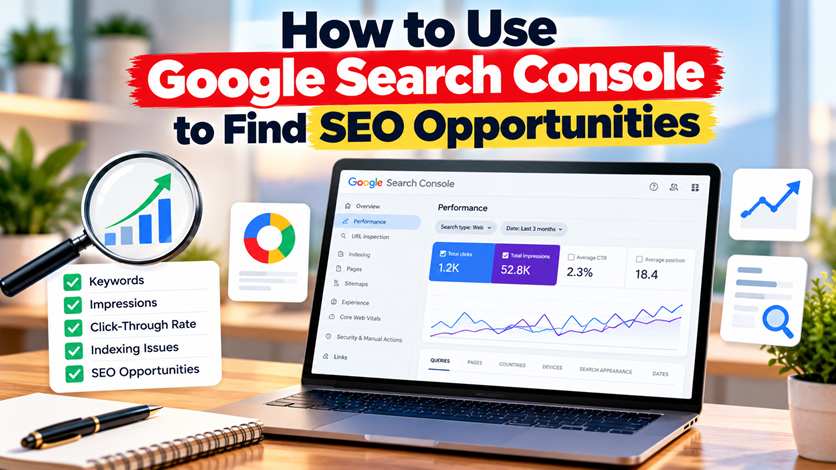
After verifying your website, open Google Search Console and select the correct property. Navigate to the Performance report for Google Search results.
This report helps you understand how your website performs in organic Google Search. You can examine performance for different queries, pages, countries, devices, and search appearances when the relevant data is available.
Start by selecting a suitable date range. Comparing the last 28 days with the previous 28 days can help you identify recent changes. For broader trends, compare longer periods while accounting for seasonality and changes in search demand.
Focus on these four metrics:
- Total clicks: The number of clicks from Google Search results to your website.
- Total impressions: How often your website appeared in Google Search results.
- Average CTR: The percentage of impressions that resulted in clicks.
- Average position: The average position of your topmost result for the selected data.
These metrics provide different perspectives. For example, impressions can indicate search visibility, while clicks show how many visits came through the reported search results. Neither metric alone explains every reason behind a page's performance.
Step 2: Find Keywords With High Impressions but Few Clicks
One of the most useful SEO opportunities is a query that generates impressions but relatively few clicks. It means your website is appearing for that search, but its current visibility may not be translating into many visits.
In the Performance report:
- Open the Queries tab.
- Sort the data by impressions.
- Look for relevant queries with impressions but low clicks.
- Review the average position and CTR for each query.
- Open the query to investigate the pages associated with it.
For example, a Patna-based business might discover that its website appears for searches related to SEO services, local SEO, or website development. These queries can help you identify topics and pages that deserve further investigation.
Before changing a page, check whether the query is relevant to your business and whether the page genuinely satisfies the search intent. Do not optimize for a keyword simply because it has impressions.
What Should You Do With These Keywords?
- Improve the page title to describe the content accurately.
- Make the search snippet clear and relevant to the query.
- Answer the searcher's question more directly.
- Add useful examples, explanations, or missing information.
- Link the page to relevant service pages and supporting articles.
Remember that Google may choose its own title link or snippet in search results. Updating your title or meta description does not guarantee a higher CTR or ranking.
Step 3: Find Pages That Need Better Click-Through Rates
CTR indicates the proportion of impressions that resulted in clicks. A page may receive many impressions but fewer clicks than expected for its position and search intent.
To investigate:
- Open the Pages tab in the Performance report.
- Identify pages with meaningful impressions and relatively low CTR.
- Select an individual page to filter its performance.
- Open the Queries tab to see which searches triggered that page.
- Review whether the page title and content match those searches.
Do not use one universal CTR benchmark for every page. CTR can vary significantly depending on average position, query type, brand recognition, search features, device, and competition.
Instead, compare similar queries and pages over consistent periods. If a page receives impressions for relevant searches but few clicks, investigate its search-result presentation and the intent it serves before making changes.
Step 4: Identify Pages Ranking Near the First Page
Some pages may already appear near the first page of Google Search results for relevant queries. These pages can be useful candidates for focused improvements, although average position is not a fixed ranking for every user or search.
In the Performance report, review queries and pages with relevant impressions and average positions around the lower part of the first page or the second page.
For these pages, check:
- Whether the content fully answers the search query.
- Whether the page has a clear title and heading structure.
- Whether related pages link to it naturally.
- Whether the information is accurate and up to date.
- Whether the page provides a good mobile experience.
- Whether competing results address the topic more effectively.
Prioritize improvements that provide real value to visitors. Avoid making unnecessary changes just to add keywords or increase the length of a page.
Step 5: Discover New Content Ideas From Search Queries
Your existing search queries can reveal what people want to know. They may expose questions, service-related topics, or specific problems that your current content does not address well.
For example, a digital marketing business could discover searches related to:
- How local SEO works for small businesses.
- How to improve a business website's Google visibility.
- How to optimize service pages for search engines.
- How website performance affects the user experience.
- How to measure organic search performance.
Use these insights to decide whether to improve an existing article or create a new one. First check your current blog archive to avoid publishing multiple articles that serve nearly identical search intent.
For example, if a query relates to local search optimization, you could connect the article to your Local SEO Services in Patna page when it is relevant to the reader.
The objective is to create a useful connection between the searcher's question, your content, and the services your business offers.
Step 6: Find Indexing Issues With URL Inspection
A page cannot normally appear in Google's organic search results unless Google has indexed it. Google Search Console's URL Inspection tool helps you examine the indexing status of individual URLs and review information about Google's ability to access them.
To inspect a page:
- Copy the complete URL of an important page.
- Paste it into the URL Inspection field in Search Console.
- Review the available indexing information.
- Check for reported problems, canonical information, or crawling details.
- If the page is eligible and appropriate for indexing, request indexing when necessary.
Pay particular attention to important service pages, recently published articles, and pages that have unexpectedly lost search visibility.
Requesting indexing does not guarantee that Google will index a page or rank it. If a page remains unindexed, investigate the underlying issue rather than repeatedly submitting the same URL.
Official resource: Google's URL Inspection documentation.
Step 7: Check Your XML Sitemap
An XML sitemap helps Google discover URLs on your website. It is particularly useful when you publish new content or maintain a website with many pages. However, sitemap submission does not guarantee indexing or improved rankings.
Open the Sitemaps report in Google Search Console and check whether your sitemap has been processed successfully.
Review these points:
- The sitemap URL loads correctly.
- Important canonical pages are included.
- Redirecting or error URLs are not unnecessarily included.
- The sitemap reflects your intended website structure.
- New important pages can be discovered through the sitemap and internal links.
You can review the Owntus Media XML sitemap for the website's published URL structure.
For more information, read Google's guide to building and submitting sitemaps.
Step 8: Compare Mobile and Desktop Search Performance
Google Search Console lets you segment Performance report data by device. Comparing mobile and desktop can help you identify differences in search visibility and clicks.
If one device shows a noticeable change, investigate possible explanations rather than assuming the website is automatically broken.
- Check whether important pages display correctly on mobile devices.
- Review navigation, text readability, and button usability.
- Test page loading performance.
- Check whether mobile users can easily access key content.
- Compare similar queries and date ranges when reviewing performance.
Use Google PageSpeed Insights to examine performance diagnostics and available Core Web Vitals data.
If your business website needs technical or usability improvements, learn more about Website Development in Patna.
Step 9: Connect Search Queries With the Right Landing Pages
The Pages and Queries tabs become more useful when you examine them together. They can help you understand which pages appear for specific searches and whether your website has a clear page for the intent behind each query.
For example, a query about on-page optimization should generally lead to a page that explains that service or provides a directly relevant guide. Sending every query to your homepage may not provide the most useful experience.
Review your key query-to-page relationships:
- Identify the queries generating impressions for each important page.
- Check whether the page answers the query accurately.
- Identify queries that may need a more relevant landing page.
- Improve contextual internal links between related pages.
- Consolidate overlapping content only after reviewing its purpose and performance.
For a business offering SEO, website development, and social media services, each service should have a clear purpose and useful content that distinguishes it from other pages.
Explore these related Owntus Media service pages:
- SEO Services in Patna
- Local SEO Services in Patna
- On-Page SEO Services in Patna
- Website Development in Patna
- Social Media Marketing in Patna
Step 10: Build a Simple SEO Action Plan
Finding opportunities is only the first step. Create a prioritized action plan so that your Search Console insights lead to practical improvements.
- High priority: Investigate indexing problems, broken important pages, and technical issues affecting access to key content.
- Medium priority: Improve relevant pages that receive impressions but may not fully satisfy search intent.
- Content priority: Update existing articles and create genuinely useful content for relevant unanswered queries.
- Internal linking: Connect supporting articles with relevant service pages.
- Measurement: Record the changes you make and review performance over an appropriate period.
Maintain a simple spreadsheet containing the URL, target query, current performance, identified issue, planned change, implementation date, and follow-up results. This makes it easier to learn which improvements are useful.
How Owntus Media Can Help With SEO Growth
Google Search Console provides useful evidence, but turning that data into an effective SEO strategy also requires understanding search intent, website structure, content quality, competition, and business goals.
Owntus Media's SEO Services in Patna can help businesses explore opportunities to improve their website's search visibility.
Depending on your requirements, you can also explore:
- Local SEO Services in Patna for location-focused search optimization.
- On-Page SEO Services in Patna for page-level improvements.
- Website Development in Patna for website structure and usability requirements.
- Social Media Marketing in Patna for social media strategy and brand visibility.
To discuss your website's requirements, visit the Owntus Media contact page.
Conclusion
Google Search Console is more than a tool for checking clicks and impressions. It can help you discover relevant keywords, identify pages that need attention, investigate indexing issues, and find content opportunities based on real search data.
Start with the Performance report, examine queries and pages together, investigate important URLs, and review your sitemap. Then prioritize changes based on their likely value to your visitors and business.
SEO growth takes consistent work, and no single report or optimization guarantees higher rankings. By using Search Console regularly and making evidence-based improvements, you can build a more informed and sustainable SEO strategy.
Frequently Asked Questions (FAQs)
1. Is Google Search Console free to use?
Yes. Google Search Console is a free service from Google that helps website owners monitor search performance, inspect URLs, review indexing information, and identify certain website issues.
2. How can Google Search Console help improve SEO?
It provides information about search queries, impressions, clicks, CTR, average position, indexing, and other reports. You can use these insights to prioritize content improvements and investigate technical problems.
3. How do I find keywords in Google Search Console?
Open the Performance report and select the Queries tab. Review the queries generating impressions and clicks, then investigate their relevance, associated pages, CTR, and average position.
4. What does a high number of impressions but few clicks mean?
It means your result is appearing in search results but is receiving relatively few clicks. Possible explanations include its average position, search intent, competition, or how the result is presented. Review the query and page before making changes.
5. Does requesting indexing guarantee that my page will rank?
No. Requesting indexing asks Google to consider crawling a URL. It does not guarantee indexing, ranking, or a particular position in search results.
6. How often should I check Google Search Console?
Many small businesses can review performance weekly or monthly, depending on how frequently their websites change. Check sooner when investigating a sudden traffic decline, indexing problem, or important website migration.
7. Can Google Search Console show why my traffic dropped?
It can help you investigate changes in queries, pages, devices, clicks, and impressions. However, it may not identify the complete cause by itself. You may also need to examine website changes, search demand, seasonality, and technical issues.
8. Is Google Search Console enough for a complete SEO audit?
No. It is a valuable source of search and indexing data, but a comprehensive SEO audit may also require content analysis, website crawling, manual page reviews, performance testing, and competitor research.
9. Can I use Google Search Console for a local business in Patna?
Yes. It can show queries and pages that generate organic search visibility for your website. Combine this information with accurate local business information, useful location-specific content, and an eligible Google Business Profile to support your local SEO strategy.